Genshin Impact Mac Compatibility and Play Methods
Discover how to play Genshin Impact on Mac in 2026 with cloud gaming or PlayCover—unlock seamless Teyvat adventures on your Apple device!
If you've been trying to figure out can you play Genshin Impact on Mac, here's the real situation: yes, you can, but it's not as straightforward as downloading a native Mac client and jumping in. Even in 2026, HoYoverse still has not released an official macOS version of Genshin Impact. So if you want to explore Teyvat on a MacBook, Mac mini, or iMac, you're basically choosing between three routes: cloud gaming, PlayCover, or a Windows compatibility setup like CrossOver or Parallels. Each one comes with its own mix of convenience, performance, cost, and risk, so the best option really depends on what kind of Mac you're using.
Can You Play Genshin Impact on Mac in 2026
So, can you play Genshin Impact on Mac in 2026? Yes — but only through cloud services or unofficial workarounds, since HoYoverse still does not offer an official macOS download. The game remains officially supported on Windows PC, PlayStation 5, Xbox Series X|S, iOS, and Android, while Mac users are still left piecing together alternatives.
This matters a lot because Apple Silicon Macs and Intel Macs do not have the same options. If you're on an M1, M2, M3, or M4 machine, you have access to the strongest workaround: PlayCover. It runs the iOS version of Genshin on Apple Silicon hardware and, in many cases, the experience is honestly pretty solid.
Intel Mac users have it rougher. Since PlayCover does not support x86-64 Macs, those players are mostly pushed toward cloud gaming or some kind of Windows layer, both of which come with trade-offs like extra latency, weaker performance, or added cost. And no matter which route you choose, it's worth keeping in mind that none of these local methods are officially approved by HoYoverse.
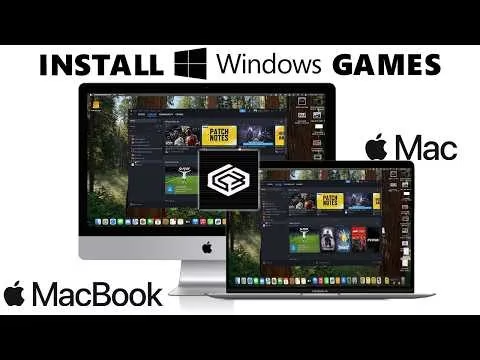
Genshin Impact Mac Compatibility and Requirements
Before you install anything, it helps to know what actually works on your hardware. That alone can save you a lot of wasted time.
| Method | Apple Silicon (M1–M4) | Intel Mac | macOS Version Needed | Approximate Cost |
|---|---|---|---|---|
| Cloud Gaming (GeForce Now / Xbox Cloud) | ✅ Excellent | ✅ Good | Any modern macOS | Free – ~$17/mo |
| PlayCover (iOS IPA sideload) | ✅ Best performance | ❌ Not supported | macOS 12 Monterey+ | Free (IPA source varies) |
| CrossOver (Windows compatibility layer) | ⚠️ Functional | ⚠️ Variable | macOS 10.15+ | ~$74/year |
| Parallels Desktop (full Windows VM) | ⚠️ High overhead | ⚠️ High overhead | macOS 12+ recommended | ~$100/year + Windows license |
If you're on Apple Silicon, you're in the best position by far. M1 through M4 Macs can use PlayCover, which runs the iOS build on ARM hardware without the usual emulation hit. In practice, that means an M1 can handle 60 FPS at medium to high settings, while M3 and M4 Pro models have way more room to breathe.
RAM matters too. Technically, 8 GB is enough to get in and play, but 16 GB is a much safer target if you want smoother long sessions, especially in heavier areas like Nod-Krai or when you're multitasking. Storage is another plus for the iOS route: the IPA and related files usually take around 20–25 GB, which is far lighter than the roughly 150 GB footprint of the full Windows client.
Intel Macs are much more limited. Since PlayCover is off the table, you're looking at cloud streaming, CrossOver, or Parallels. CrossOver can sometimes install and launch Genshin, especially in newer versions, but the anti-cheat has a habit of causing trouble in non-standard environments. Parallels is usually the more dependable option for Intel users who want a full Windows setup, though older Intel Macs often struggle because of the extra virtualization overhead and weaker graphics performance.
A few quick requirements are worth keeping in mind:
-
Apple Silicon Macs: Best overall experience, especially with PlayCover
-
Intel Macs: Better suited to cloud gaming unless you already use Parallels
-
RAM: 8 GB minimum, 16 GB recommended
-
Storage: 20–25 GB for PlayCover, much more for Windows installs
-
Controllers: Bluetooth and USB controllers work well for cloud gaming and PlayCover
Genshin Impact on Mac Methods
Cloud Gaming for Genshin Impact
Cloud gaming is easily the quickest way to get Genshin running on a Mac. There is no big local install, no IPA hunting, and no messing around with compatibility layers. Services like Nvidia GeForce Now and Xbox Cloud Gaming handle the rendering on remote servers, then stream the game to your browser or app.
That makes setup incredibly simple. You log into the cloud service, connect your HoYoverse account, and you're usually in-game within minutes. For players who just want to do commissions, spend Resin, knock out events, or wander around the map, this is pretty much the least painful option.
The catch, of course, is latency. Depending on your internet and how close you are to the server, you can expect around 30–80 ms of added input delay. For casual content, that usually feels fine. For tighter gameplay — Spiral Abyss Floor 12, reaction-heavy rotations, or precise dodge timing during burst windows — even a small delay can throw you off more than you'd expect.
Bandwidth is another thing to watch. At 1080p and 60 FPS, cloud sessions can chew through roughly 9–15 GB every two hours. That's fine on unlimited home internet, but not great on a capped hotspot. Availability also depends on region, with GeForce Now generally offering broader support than Xbox Cloud Gaming.
PlayCover Genshin Impact on Mac
If you own an Apple Silicon Mac and want the best local performance, PlayCover is the standout option. It works by sideloading a decrypted iOS IPA of Genshin Impact and running that build directly on Apple's ARM architecture. Since it isn't relying on traditional emulation, performance can be surprisingly strong.
On an M2 MacBook Pro, hitting 60 FPS at medium settings is very realistic. On M4 Pro hardware, you can push things much further, including better shadows and ambient occlusion, while still keeping gameplay smooth. For a lot of players, this is the closest thing to a proper local Mac experience right now.
One of PlayCover's biggest strengths is its keymapping. You can map movement to WASD, assign skills to keyboard buttons, and use the mouse for camera control so the game feels much closer to a desktop action RPG. It also supports saved control profiles, which is handy if you swap between different HoYoverse games. PlayCover v2.0.5, released in March 2026, added macOS Sequoia support and optimizations for M4 chips, and the software itself is open-source and free on GitHub.
That said, the risk side of the conversation is not optional here. HoYoverse does not officially allow PlayCover, and Genshin's terms of service prohibit running the game on unauthorized platforms. Some players have reported suspensions after long-term use. The risk does not seem completely random either — community reports often point to more visible activities like Spiral Abyss clears, co-op, or event participation rather than just passive logins. If you're going this route, most experienced players would tell you to use a secondary account, not your main.
Windows Layer for Genshin Impact
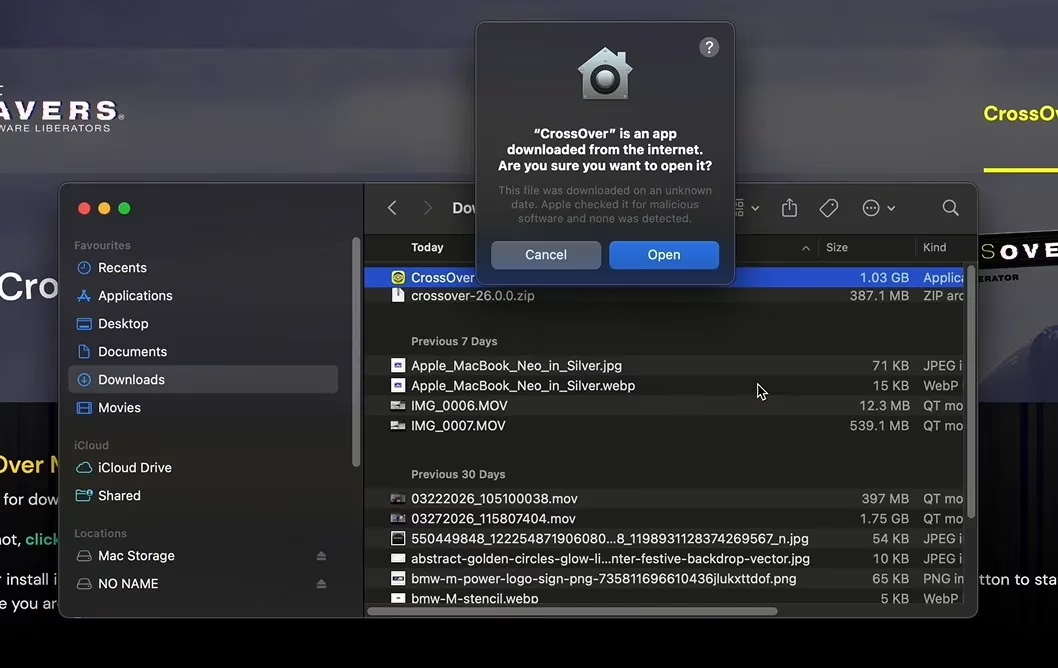
The other route is to run the Windows version through CrossOver or Parallels. Both can work, but they solve the problem in different ways.
CrossOver uses a Wine-based compatibility layer instead of a full Windows installation. That makes it lighter and cheaper than running a virtual machine, and you also skip buying a Windows license. For Genshin, it can install the official HoYoverse launcher and download the full PC client, which sounds great on paper. In practice, results are mixed. Some players get stable sessions, while others run into launcher crashes, login issues, or anti-cheat problems.
Parallels is more brute-force. It runs a full Windows 11 virtual machine, so you're basically playing the official Windows version inside a VM. Compatibility is better because the game behaves more like it would on a normal PC, but the downside is cost and overhead. Parallels itself is around $100 per year, and a Windows 11 ARM license adds even more.
Performance is decent on Apple Silicon, but still behind native Windows by a noticeable margin. You're usually looking at a 10–25% frame rate loss compared to bare-metal performance. If you already use Parallels for work or other software, adding Genshin can make sense. If you're thinking about buying it just for Genshin, though, the value is a lot harder to justify when PlayCover is free and usually faster.
How to Play Genshin Impact on Mac Step by Step
Cloud Setup
Getting started with cloud gaming is the easiest of the three methods. You only need a browser or the service's app, plus your HoYoverse account.
-
Go to the GeForce Now or Xbox Cloud Gaming website.
-
Sign in or create an account.
-
Open the app or web client on your Mac.
-
Search for Genshin Impact.
-
Launch the game and log into your HoYoverse account when prompted.
-
Adjust stream quality based on your internet speed.
For settings, 25 Mbps is usually enough for stable 1080p/60 FPS streaming. If your connection is above 35 Mbps, you can raise bitrate or visual quality for a cleaner image. Bluetooth controllers and wired USB gamepads are usually detected without much trouble, and GeForce Now also supports keyboard remapping through its own settings.
PlayCover Setup
PlayCover takes more effort, but it gives Apple Silicon users the best local performance.
-
Download the latest PlayCover release from the official PlayCover GitHub page.
-
Open the DMG and move PlayCover into your Applications folder.
-
Grant any macOS permissions the app asks for.
-
Obtain a decrypted Genshin Impact IPA from a community-maintained source.
-
Drag the IPA into PlayCover and wait for signing to finish.
-
Set up your keymapping profile before launching the game.
The control setup is a big part of making this feel good. Most players bind movement to WASD, dodge to a nearby key, Elemental Skill and Burst to E and Q, and mouse movement to camera drag. Once that's done, the game runs in a resizable window, and controller support is also available if you prefer that over keyboard and mouse.
The annoying part is patch maintenance. Whenever HoYoverse pushes a new update, you need a matching updated IPA. In a lot of cases, there's a delay of a few days to a week before the community has a fresh decrypted version ready, so PlayCover users often end up waiting longer than players on official platforms.
CrossOver or Parallels Setup
If you're going with CrossOver, the process is fairly straightforward, even if the results can be inconsistent.
-
Install CrossOver on your Mac.
-
Create a new bottle using a Windows 10 configuration.
-
Download and install the official HoYoverse launcher inside that bottle.
-
Use the launcher to install Genshin Impact.
-
Set the game to 1080p with medium settings for better stability.
It's also smart to close background apps, especially anything that records video or uses a lot of CPU time. That can help with frame pacing inside the compatibility layer.
For Parallels, the setup is heavier but more predictable:
-
Install Parallels Desktop.
-
Create a Windows 11 ARM virtual machine.
-
Allocate at least 8 GB of RAM and 4 CPU cores to the VM.
-
Install the official Genshin launcher inside Windows.
-
Launch the game and lower settings as needed.
For smoother gameplay in Parallels, 1080p medium is the sweet spot. Dropping shadows to Low and reducing crowd density also helps keep frame rates above 30 FPS, which is important because combat starts feeling rough pretty quickly below that.
Genshin Impact Mac Performance and Best Settings
How well Genshin runs on Mac depends heavily on the chip you're using. On PlayCover, M1 and M1 Pro systems should generally aim for 1080p with medium settings if you want a steady 60 FPS in most open-world content. You may still see dips during heavier combat, especially with lots of Pyro effects or crowded domain fights.
M2 Pro and M3 Macs can push higher, and 1440p with high textures plus medium shadows is usually realistic. M4 Pro models have the most headroom of the bunch and can get close to maxed-out settings while still feeling smooth. If you're using CrossOver or Parallels, expectations should be lower, since both introduce overhead that cuts into performance.
Thermals are a real factor on MacBooks. Long sessions will spin up fans on actively cooled models, and machines like the MacBook Air can get quite warm because they rely on passive cooling. Playing while plugged in is a good idea, since battery mode can lead to throttling and sudden frame drops during harder content like Imaginarium Theater or the Stygian Onslaught event.
A few practical settings are worth sticking to:
-
M1 / M1 Pro: 1080p, medium settings, target 60 FPS
-
M2 Pro / M3: 1440p possible, high textures, medium shadows
-
M4 Pro: near-max settings are viable
-
Parallels / CrossOver: 1080p medium is the safer baseline
-
For long sessions: play plugged in to reduce throttling
For Spiral Abyss, input feel matters more than raw visuals. PlayCover is noticeably tighter than cloud gaming, but it can still feel a little different from native mobile because you're losing touch haptics and relying on mapped controls. If you're coming from iPhone or iPad, there is usually a short adjustment period before your dodge timing feels natural again.
Genshin Impact Mac FAQ
Can you play Genshin Impact on Mac safely?
The safest option is cloud gaming. You're accessing the game through licensed streaming platforms, and there is no client-side modification happening on your Mac. PlayCover is riskier because it uses an unauthorized execution method, and HoYoverse's ToS clearly does not approve that setup.
Is Mac ban risk real?
Yes, at least with PlayCover. Community reports of suspensions do exist, even if they are not universal. The risk seems more noticeable on active, visible accounts. If you decide to use PlayCover, doing it on a secondary account is the safer move.
Can Mac run co-op?
Yes. All three methods can access co-op because your account data is stored on HoYoverse's servers. Cloud gaming works normally, PlayCover supports co-op but carries the same general account risk, and CrossOver or Parallels depend on whether the launcher and anti-cheat stay stable during the session.
Will HoYoverse release a Mac client?
As of 2026, there is still no official word on a native macOS version of Genshin Impact. HoYoverse has expanded platform support for some of its other games, including Honkai: Star Rail, but Genshin remains missing from any confirmed Mac roadmap. Players keep speculating about a Mac App Store release, especially with more AAA games showing up on macOS lately, but right now that's still just speculation.
Conclusion
If you're still asking can you play Genshin Impact on Mac, the answer in 2026 is yes — you just need to pick the workaround that fits your hardware and your risk tolerance. Cloud gaming through GeForce Now or Xbox Cloud Gaming is the easiest and safest route, especially if you're mostly doing dailies, Resin spending, and casual exploration. PlayCover is the clear performance winner for Apple Silicon users, giving you native-speed iOS gameplay with full keymapping on M1, M2, M3, and M4 Macs, though the account risk is very real. CrossOver and Parallels are still options, particularly for Intel Mac users or players who specifically want the Windows client, but both come with more overhead and a worse cost-to-performance ratio.
For local play, Apple Silicon is absolutely the better place to be. If account safety is your top priority, stick with cloud gaming. If you want the strongest local experience and you're comfortable accepting the risk, PlayCover is the method most Mac players will end up looking at first.